 Cutline
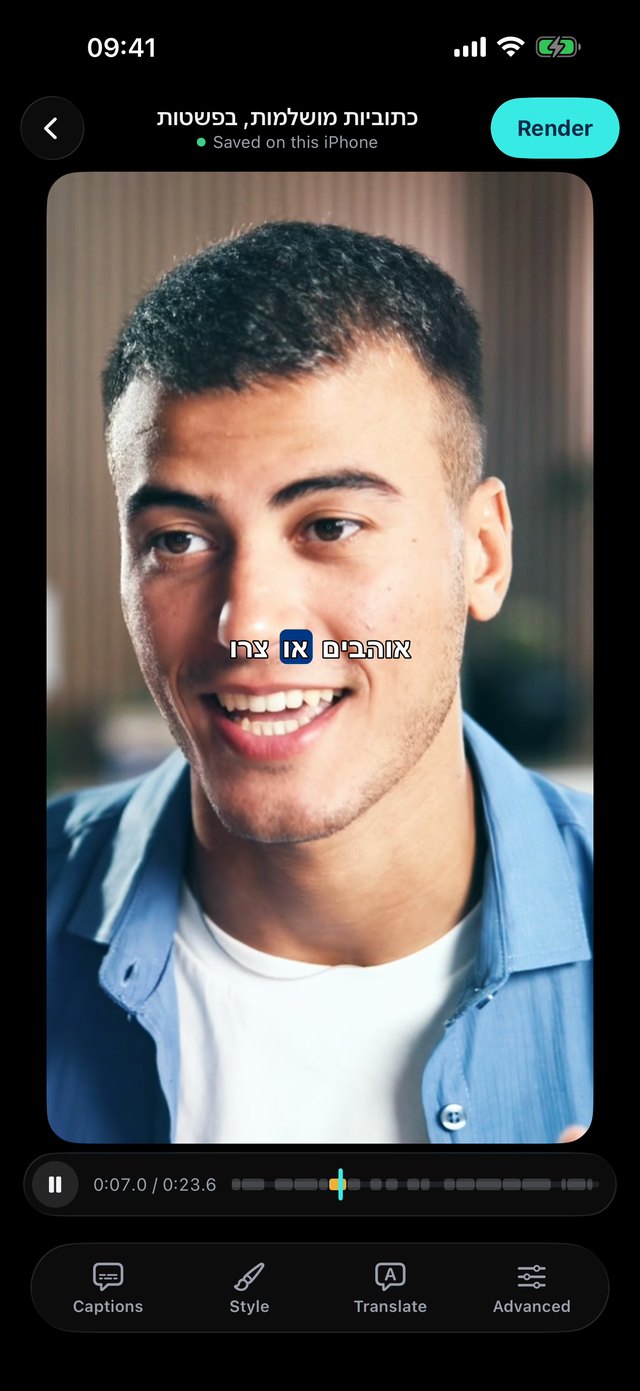
To caption a video in a language other than English, download Cutline's language pack once. On a Mac, open Settings, click Languages, then click Download next to Language pack. On an iPhone, tap the settings button, then tap Download under Languages. Then choose your language, or let Cutline detect it, and caption your video as usual. Hebrew and Arabic captions read right to left.
On Mac: download the language pack
- Open Settings. In the menu bar, click Cutline, then Settings. Or press ⌘ ,
- Click Languages. It's the tab with the globe.
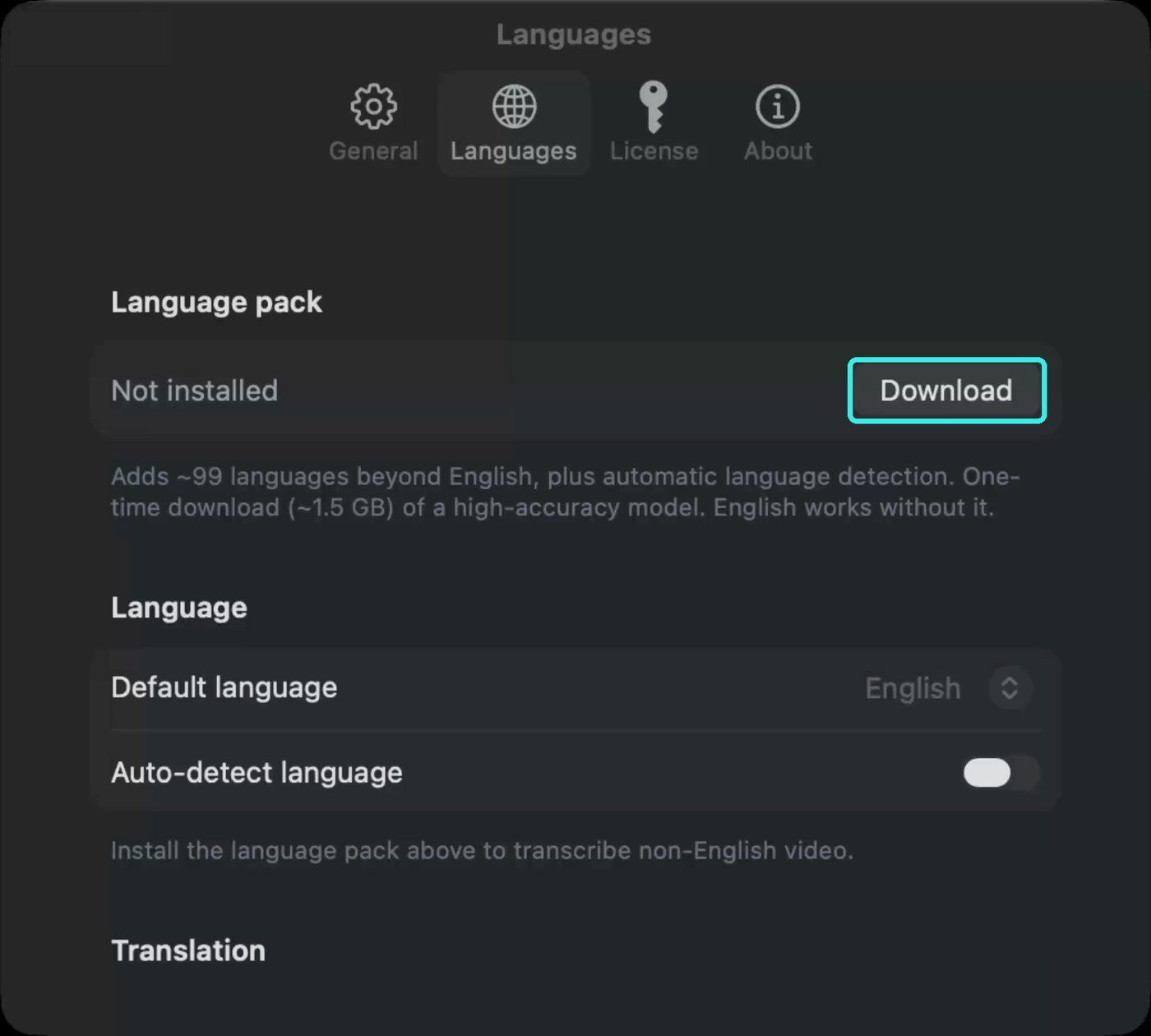
- Click Download. Under Language pack you'll see "Not installed", with Download beside it.
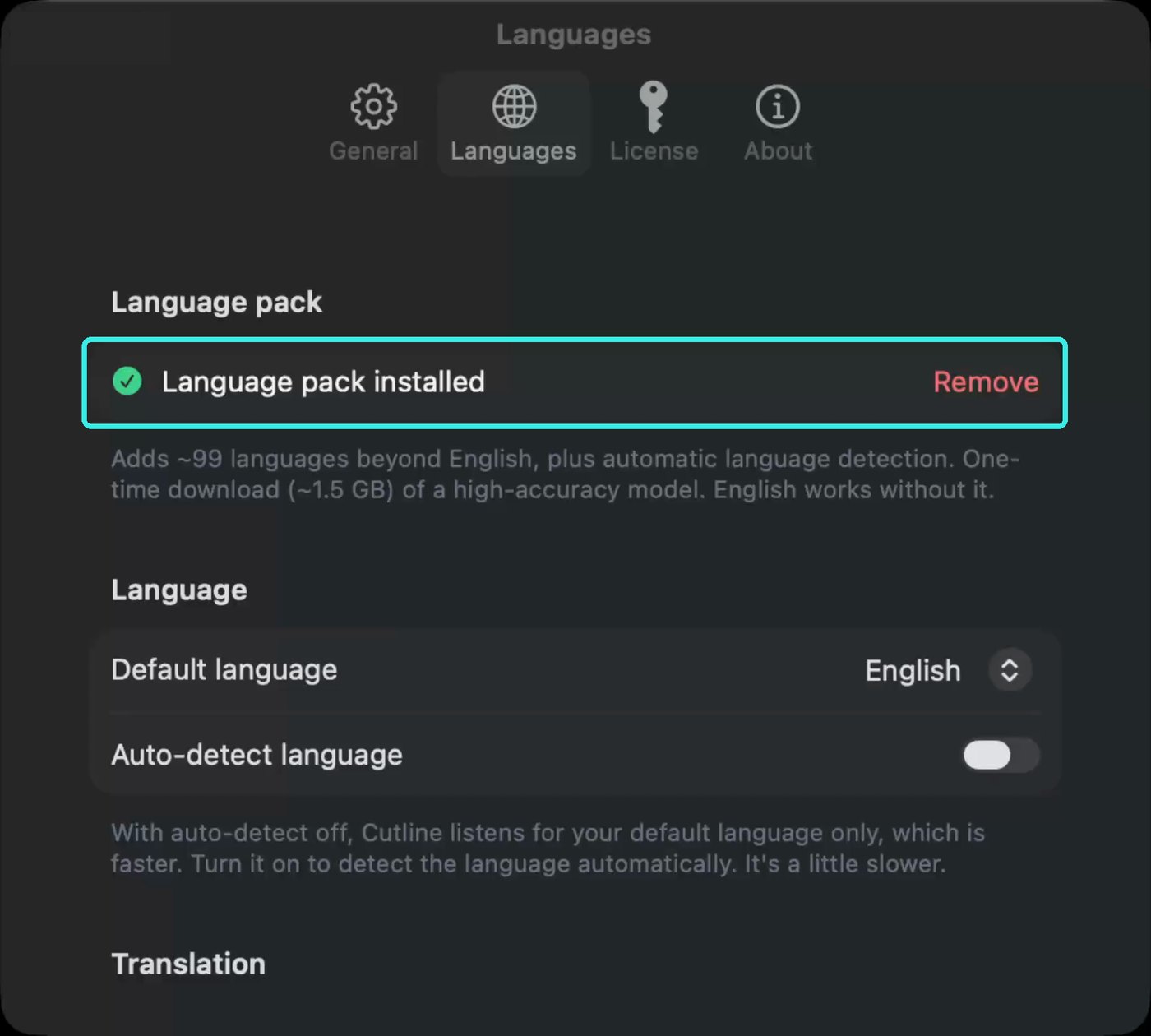
- Wait for it to finish. It's a one-time download of about 1.5 GB, so it can take a while. A progress bar shows how far along it is. You can keep working in another window.
- Look for the green tick. When it says Language pack installed, Cutline can caption around 99 languages.
Choose your language
Stay on the Languages tab. Under Language you have two choices.
- Default language. Pick the language your videos are in. Cutline listens for that language only, which is faster. Choose this if most of your videos are in one language.
- Auto-detect language. Turn this on and Cutline works out the language of each video. It's a little slower. Choose this if your videos are in different languages.
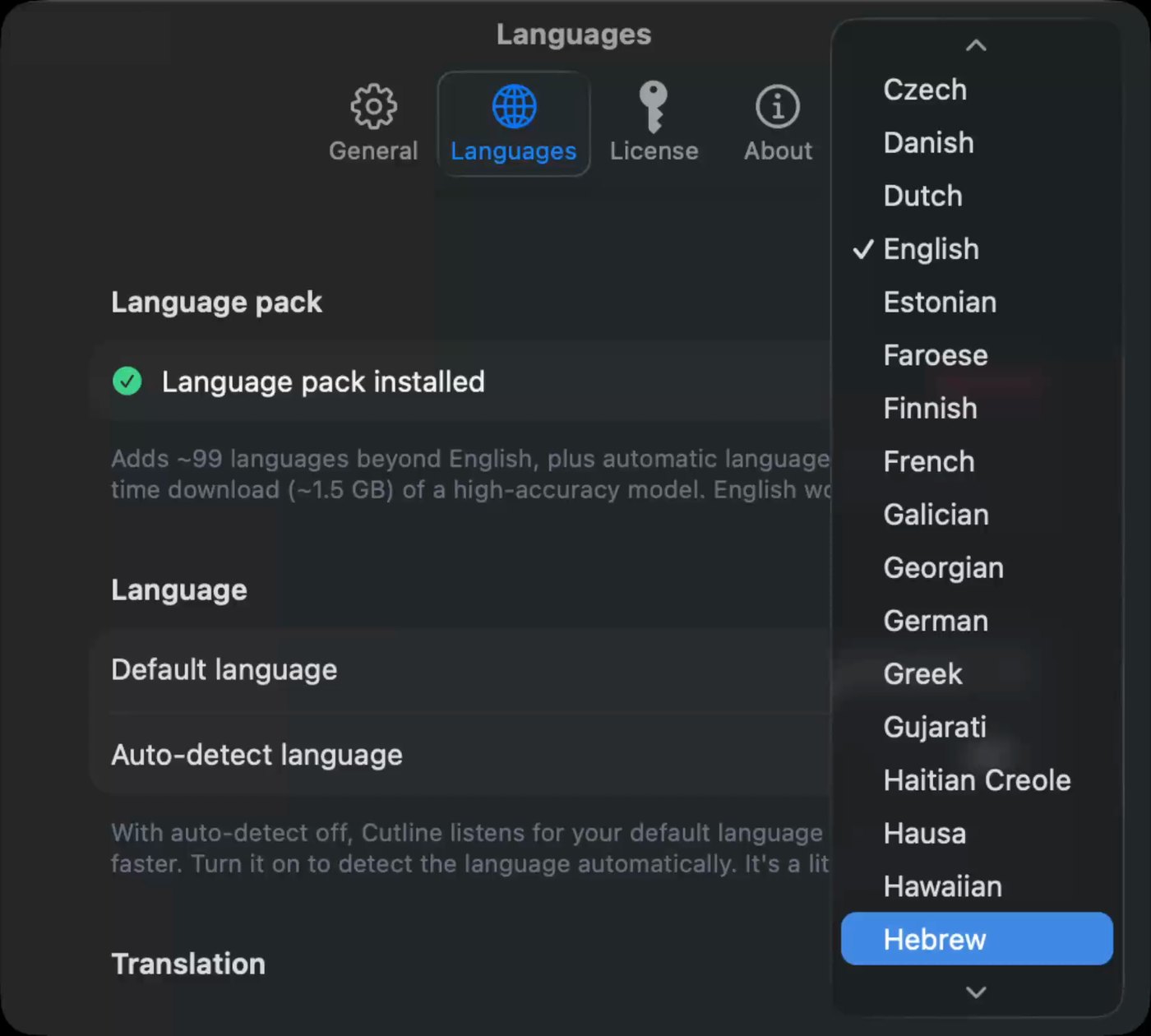
See every language the pack adds
Afrikaans, Albanian, Amharic, Arabic, Armenian, Assamese, Azerbaijani, Bashkir, Basque, Belarusian, Bengali, Bosnian, Breton, Bulgarian, Cantonese, Catalan, Chinese, Croatian, Czech, Danish, Dutch, English, Estonian, Faroese, Finnish, French, Galician, Georgian, German, Greek, Gujarati, Haitian Creole, Hausa, Hawaiian, Hebrew, Hindi, Hungarian, Icelandic, Indonesian, Italian, Japanese, Javanese, Kannada, Kazakh, Khmer, Korean, Lao, Latin, Latvian, Lingala, Lithuanian, Luxembourgish, Macedonian, Malagasy, Malay, Malayalam, Maltese, Maori, Marathi, Mongolian, Myanmar, Nepali, Norwegian, Nynorsk, Occitan, Pashto, Persian, Polish, Portuguese, Punjabi, Romanian, Russian, Sanskrit, Serbian, Shona, Sindhi, Sinhala, Slovak, Slovenian, Somali, Spanish, Sundanese, Swahili, Swedish, Tagalog, Tajik, Tamil, Tatar, Telugu, Thai, Tibetan, Turkish, Turkmen, Ukrainian, Urdu, Uzbek, Vietnamese, Welsh, Yiddish, Yoruba.
Caption your video
- Click Choose file and pick your video. You can also drag it onto the window, or press ⌘ O.
- Wait for the captions. Cutline transcribes the video in your language, right on your Mac. When the top bar says Ready to render, your captions are done.
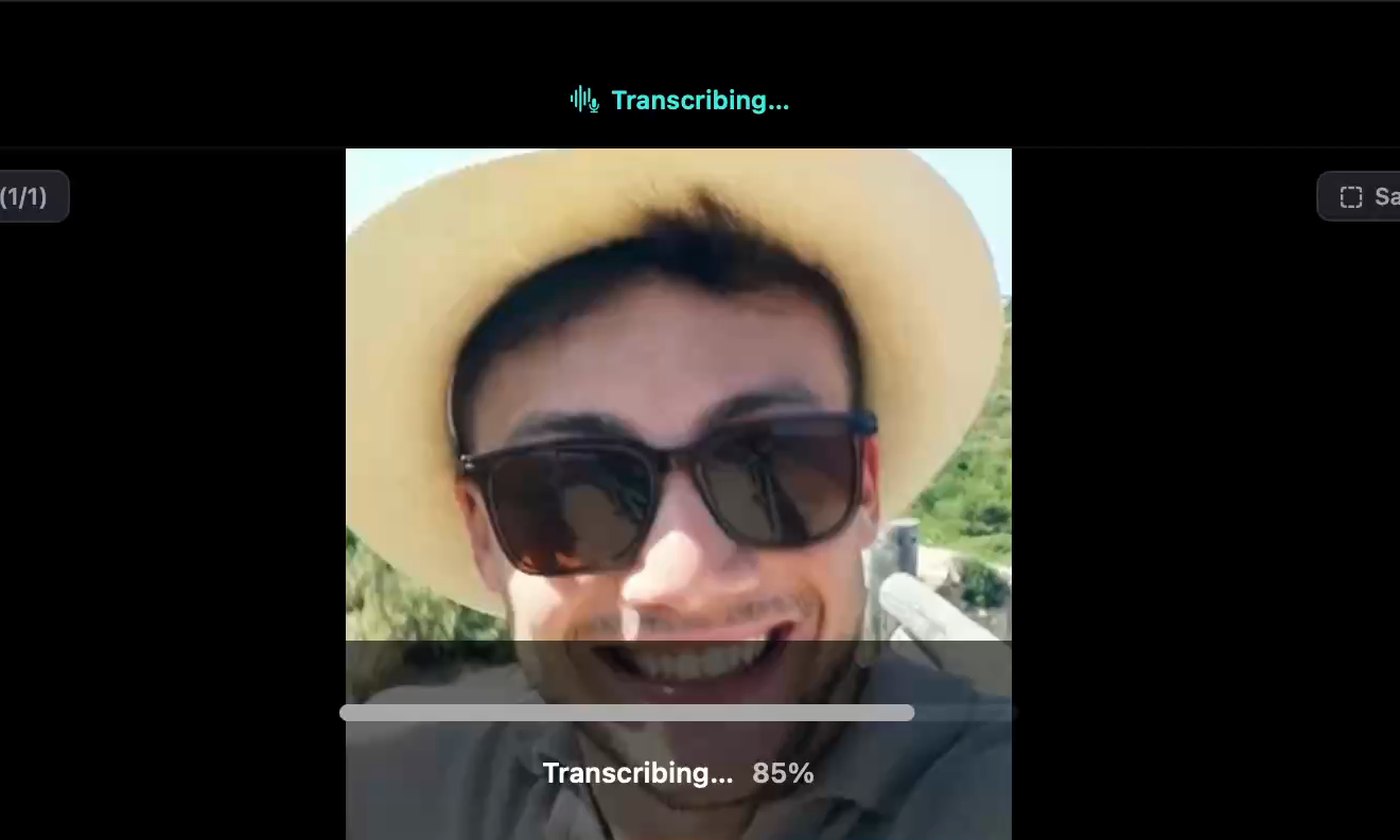
Right-to-left captions
Hebrew and Arabic read right to left, and so do your captions. The words sit in the right order on the video, and the highlight follows the voice from right to left.
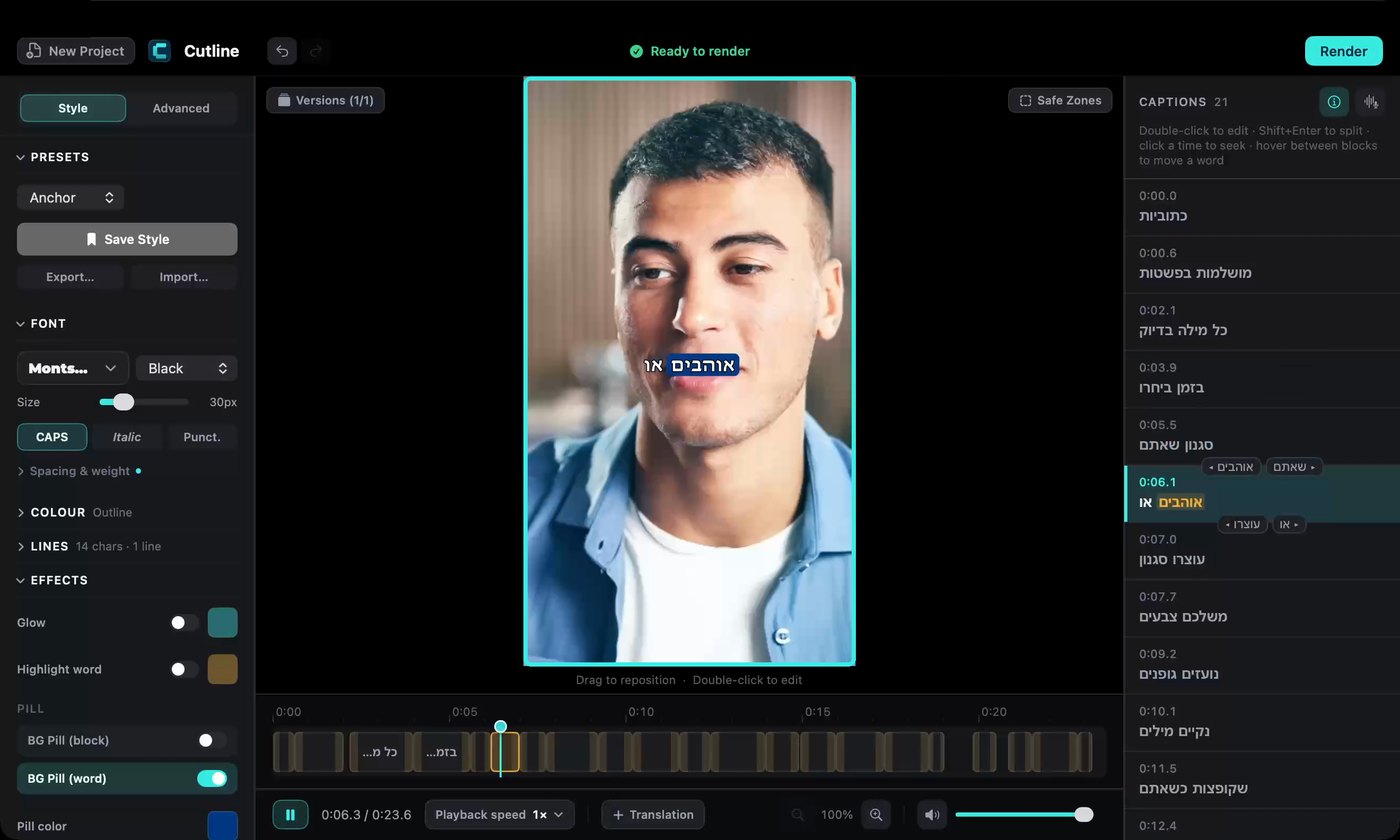
Then choose a style and click Render, just like any other video.
On iPhone
It's the same idea on your phone, in three steps.
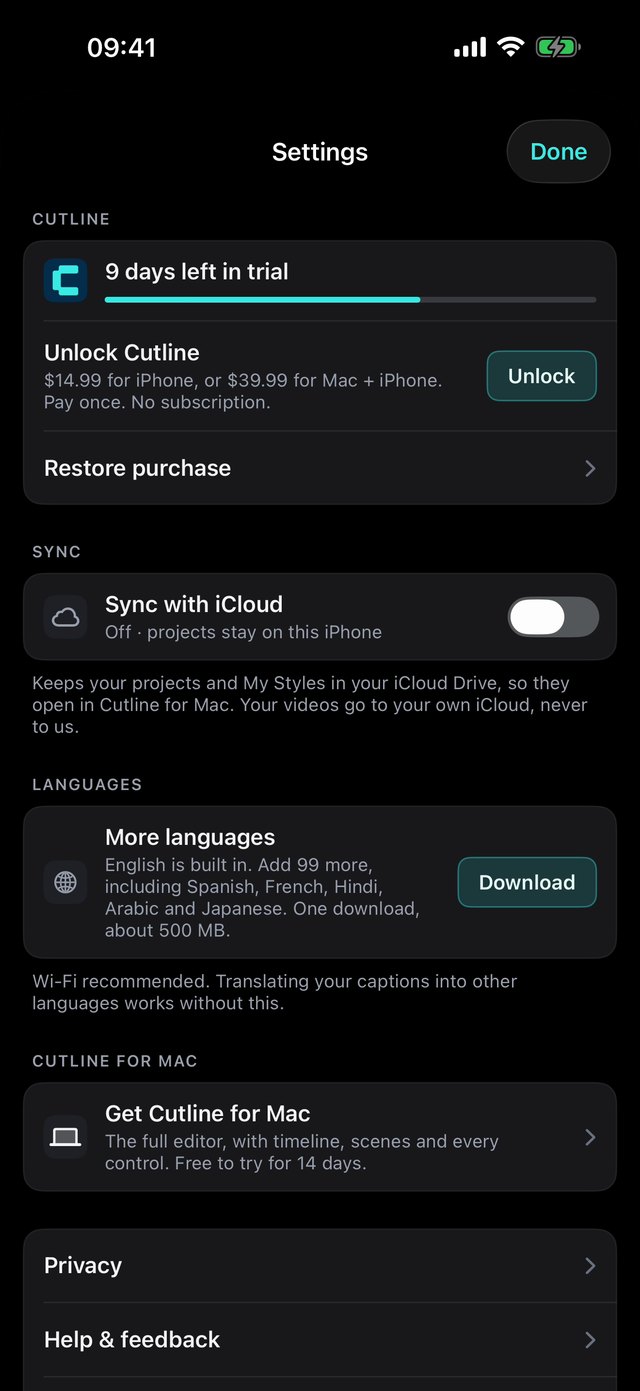
- Tap the settings button. It's the gear at the top right of your projects.
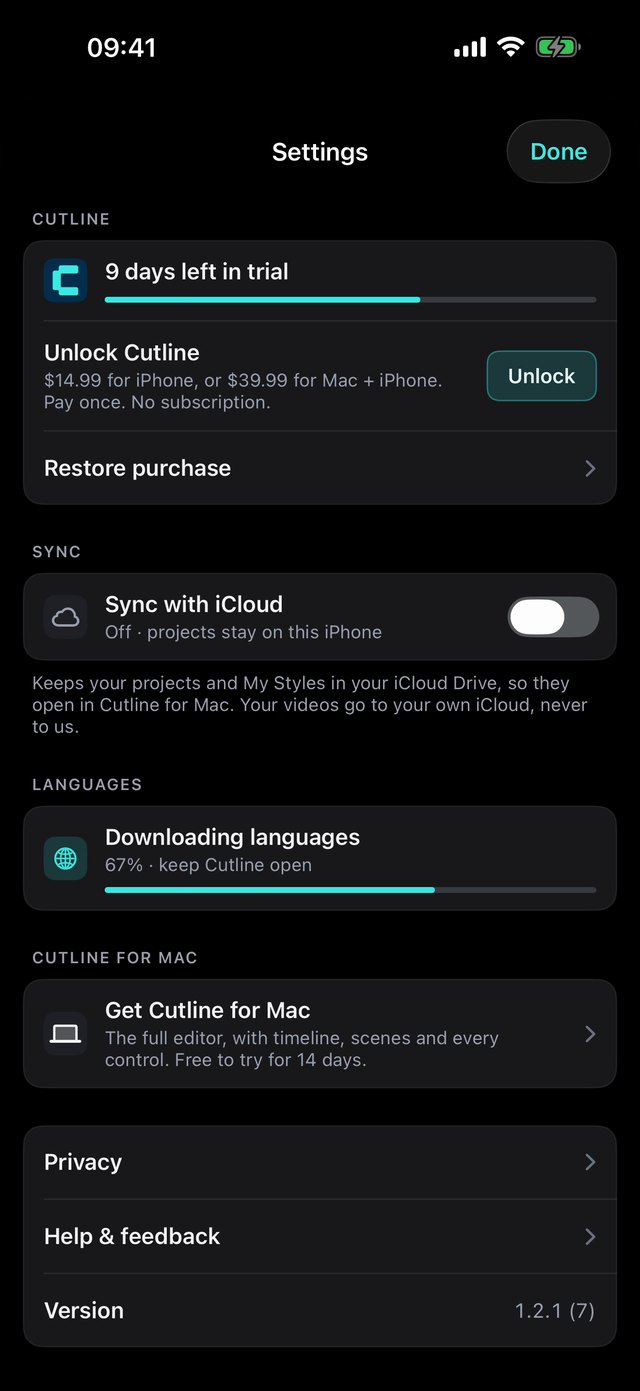
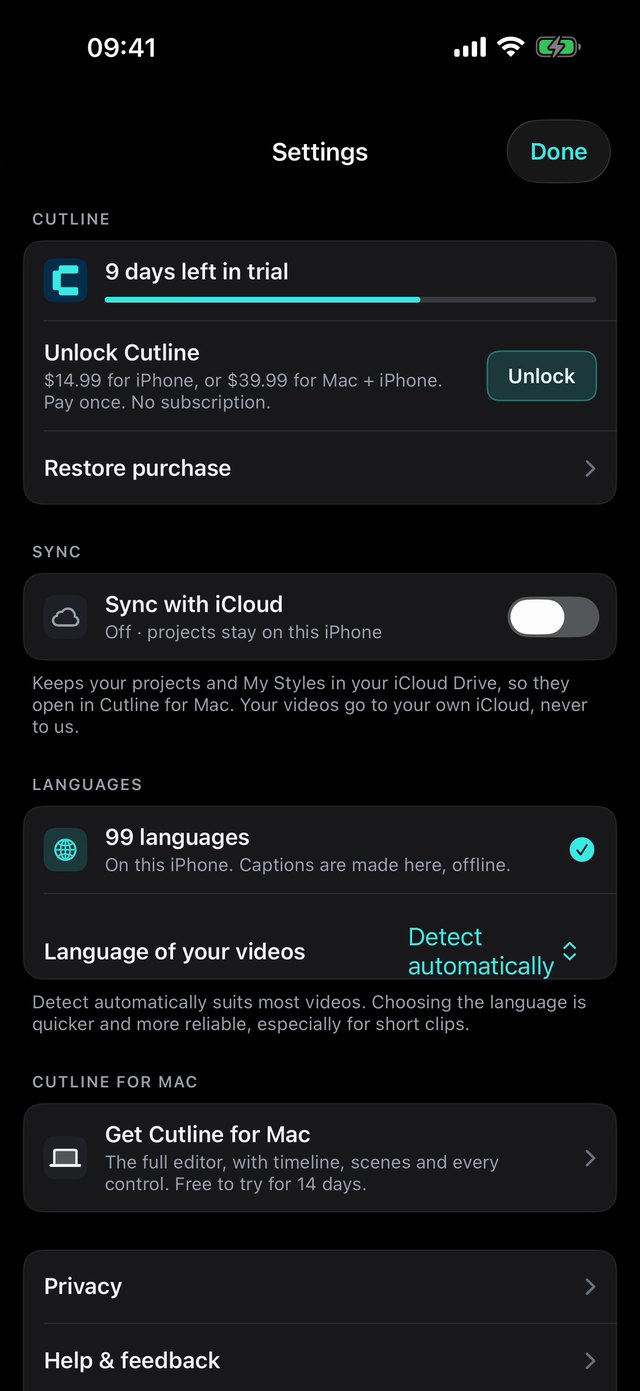
- Under Languages, tap Download. It's about 500 MB, so Wi-Fi is best. Keep Cutline open while it downloads. When it's done you'll see 99 languages.
- Choose your language. Under Language of your videos, keep Detect automatically, or choose the language. Choosing it is quicker and more reliable, especially for short clips.
Now tap Done, tap the yellow + and choose your video from Photos. Your captions appear in your language, reading right to left for Hebrew and Arabic.
Captioned in the wrong language?
On a Mac, open the project and choose File, then Re-transcribe (⇧ ⌘ R). This replaces the transcript, including any words you fixed, so do it before you edit. Your style is kept.
Where your captions are made
Cutline transcribes your video on your Mac or iPhone, in every language. Nothing is uploaded and nothing is sent to us. The language pack is downloaded once, then it all works offline.
Want a translated line too?
Captions in the language that's spoken are one thing. A translated line underneath, say Hebrew captions with English below, is a separate feature called translated subtitles. It has its own guide, coming soon.
Caption your next video in any language
Around 99 languages, right to left included, on your Mac and iPhone. Pay once. No subscription.
Get Cutline on the App Store Free for 14 days. macOS 14 or later. iOS 18 or later.Common questions
Which languages can Cutline caption?
Around 99, including Arabic, Hebrew, Spanish, French, Hindi, Japanese and Chinese. The full list is under Choose your language. The Mac and the iPhone offer the same list.
Do Hebrew and Arabic captions read right to left?
Yes. Cutline sees right-to-left text and lays each line out from the right. The highlight on the spoken word moves from right to left too.
Do I need to download the language pack on both my Mac and my iPhone?
Yes. Each device transcribes on its own, so each needs its own copy. It's a one-time download on each.
Should I choose a language or use auto-detect?
If your videos are in one language, choose it. It's faster, and more reliable for short clips. If they're in different languages, use auto-detect on the Mac, or Detect automatically on the iPhone.
Does the language pack cost extra?
No. It's included with Cutline. You only pay once for the app.